'%3e%3cpath fill='none' stroke='%23f5f5f4' stroke-linejoin='round' stroke-width='6' d='M31 67c-5-16 4-33 20-37 8-2 15 0 20 5 5-5 12-7 20-5 16 4 25 21 20 37l-5 18c-2 9-14 11-20 3l-9-12H60l-9 12c-6 8-18 6-20-3l-5-18Z'/%3e%3cpath stroke='%2354b1ff' stroke-linecap='round' stroke-width='6' d='M47 51v22M36 62h22'/%3e%3ccircle cx='86' cy='56' r='5' fill='%2342d399'/%3e%3ccircle cx='99' cy='69' r='5' fill='%23fba84d'/%3e%3c/g%3e%3cpath fill='none' stroke='%2354b1ff' stroke-linecap='round' stroke-width='3' d='M24 101h80' opacity='.7'/%3e%3ctext x='146' y='69' fill='%2354b1ff' font-family='DM Sans%2c Arial%2c sans-serif' font-size='36' font-weight='700' letter-spacing='-1.2'%3eGamepad Tester%3c/text%3e%3ctext x='149' y='96' fill='%237c8794' font-family='IBM Plex Mono%2c monospace' font-size='12' font-weight='600' letter-spacing='3'%3eONLINE CONTROLLER DIAGNOSTICS%3c/text%3e%3c/svg%3e)
01 / Compatibility first
Why Won't Games Recognize My PS Controller?
The usual reason is a protocol mismatch. Many Windows games look for XInput, the controller format used by Xbox pads. A DualSense often reaches Windows as DirectInput instead. Both formats carry button and axis data, but they use different maps and different device rules.
DirectInput can expose a PS5 controller to the operating system and browser, while an older game ignores it. You may see live button lights here, yet get no game response. That points to the game layer, not a dead pad. Some titles support DirectInput; others accept only an Xbox style device.
Steam Input can translate the pad for a game launched through Steam. Its per-game layout may present a virtual XInput device or remap buttons. Check that layout before adding another mapper. Two active layers can create duplicate presses or a second player slot.
DS4Windows can create a virtual Xbox controller for games that need XInput. Use one mapper at a time and hide the physical pad when possible. Otherwise a game may read both the real DirectInput pad and the virtual pad.
A PS5 Controller Test separates controller, browser, mapper, and game. If the live panel sees input, check the game's mode next. If it stays silent, inspect the cable, Bluetooth link, browser activation, or device choice.
02 / Five quick checks
How to Test a PS5 Controller on PC
Start with USB-C for a clean baseline. It removes pairing and battery variables. Bluetooth works too, but pair it before judging the browser signal.
- Connect the pad. Use a USB-C cable that carries data, or pair the controller in Windows Bluetooth settings.
- Wake the browser signal. Press one face button after the page loads. Some browsers list a gamepad only after that first input.
- Check the map. Press Cross, Circle, Square, Triangle, Create, Options, PS, Mute, Touchpad, the D-pad, L1, and R1.
- Check trigger travel. Pull L2 and R2 slowly from rest to full pull. Watch for a steady rise and a return to zero.
- Check both sticks. Trace a slow circle, touch each edge, then release. Watch the live point settle near the center.
🔌 Plug directly into the computer for USB. For Bluetooth, hold PS and Create until the light bar flashes, then choose the controller in the system pairing list. Keep this tab visible as you reconnect. The status and controller name should change without a second device taking focus.
If the first press does nothing, click the page and press again. A browser may wait for user input before it lists the device. That rule is separate from game support.
03 / Signal coverage
What This PS5 Controller Tester Checks
PS5 Controller Test: Check the Inputs That Matter
This page checks the core signals from the browser Gamepad API: button states, analog axes, trigger values, raw arrays, and basic rumble. This check runs in the current tab; input data is not sent to a server.
| Feature | Browser signal | What the result means |
|---|---|---|
| Buttons | Pressed or released | A mapped control reports a digital state. |
| Sticks | Left and right X/Y axes | The plots show position and rest offset. |
| L2 and R2 | Analog value from 0 to 1 | Travel can be checked for gaps or jumps. |
| Raw data | Button and axis arrays | The browser's actual map is visible for diagnosis. |
| Basic rumble | Optional actuator response | A preset may run, or the browser may report no support. |
Press each mapped control once. Face buttons are digital. L2 and R2 report a range, and stick presses add L3 or R3. The raw panel can reveal a remapped order when a game shows a different prompt.
Circle each stick, pause at the edge, and release it without touching the shell. A small offset may be normal. A moving point or large offset needs a longer check on the stick drift test. For motor output, open the controller vibration test.
🧪 Rumble buttons send basic browser commands, not every PS5 game effect. A disabled preset means no usable actuator was exposed. It does not prove a bad motor.
04 / Button reference
PS5 Controller Button Names and Layout
Sony calls the face controls Cross, Circle, Square, and Triangle. An Xbox map may show A, B, X, and Y, even when the input is correct. The D-pad has four directions. L1 and R1 are shoulders; L2 and R2 are triggers.
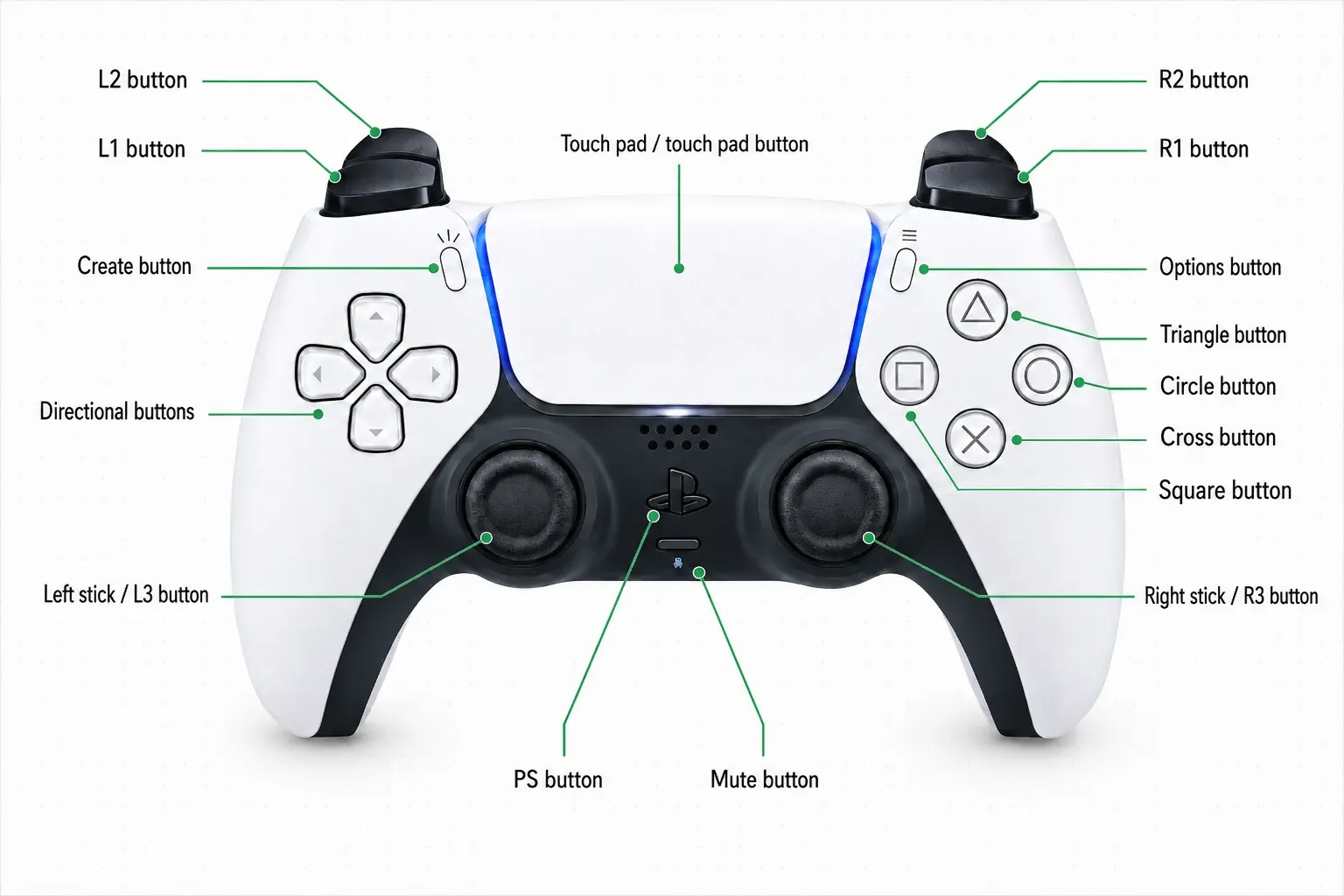
Create and Options sit beside the touchpad. A touchpad press is one button signal, not finger position. PS opens the system layer, while Mute controls the pad microphone. Pressing the sticks produces L3 or R3. Use the diagram beside the live map when a game uses short labels.
05 / Connection choices
Using a DualSense Controller on PC
A DualSense works on PC through USB-C or Bluetooth. USB-C is the best first check because it supplies data and power. A charge-only cable can light the pad without exposing a gamepad. Try a data cable and direct port first.
Bluetooth suits wireless play on a laptop or desktop. Charge the pad, remove an old pairing if Windows picks the wrong entry, and keep it near the adapter. Compare with USB if wireless input loses rumble or reconnects.
A browser result proves that the browser sees input, not that every game accepts the same map.
Steam Input may translate the device for one game, while DS4Windows may show a virtual Xbox pad to another. A native title can read the DualSense directly. Use one translation layer during diagnosis. After the PS5 Controller Test, open the PS controller calibration guide if center values need a closer look.
06 / Honest boundaries
What This PS5 Controller Test Cannot Check
A browser can read common buttons and axes, plus limited rumble. It cannot reach every DualSense feature through the standard Gamepad API. A blank signal may be an API limit, not a hardware fault. Native games can have access that a web page lacks.
- Advanced haptics: the page cannot play Sony's detailed texture effects.
- Adaptive triggers: L2 and R2 depth is visible, but resistance is not.
- Touch position: a touchpad click is visible; swipes and finger coordinates are not.
- Motion data: gyroscope and accelerometer readings are outside this map.
- Audio and power: speaker, mic, headset routing, battery health, and light-bar control are unavailable.
- Exact latency: a browser can show missed or late-looking input, not end-to-end timing.
A supported game may offer adaptive resistance, richer haptics, or speaker audio through native code. Those results belong to its game and driver path. Treat this page as a browser signal check, not full DualSense certification.
07 / Practical fixes
Common Connection Issues
Start with USB-C, press a button, and change one variable at a time. This separates power, pairing, browser activation, mapping, and hardware.
No controller detected
Use a data cable and another USB port. Skip a hub for the first try. Over Bluetooth, remove the old Windows entry and pair again. With the page open, press a face button after connecting; some browsers wait for that first event before they list the pad.
Buttons do not respond
Check the player slot and the raw button list. Close a second gamepad tab, remapper, or virtual pad that may have claimed focus. If one physical button fails in every path, compare USB and Bluetooth before treating it as a software map issue.
Games see no input
The browser may be reading DirectInput while the game wants XInput. Turn on that game's Steam Input layout, or use DS4Windows for a title outside Steam. Avoid both at once. Duplicate devices often cause double presses or a second player to appear.
Wireless rumble is weak
Charge the pad and compare a wired result. Bluetooth, browser support, and a mapper can each limit basic rumble. If buttons and axes work but every preset stays unavailable, the missing actuator signal may be a connection or API limit rather than a motor failure.
Stick values do not settle
Release both sticks on a flat surface and watch the offset for several seconds. Dust, wear, a loose thumb position, or a game deadzone can explain different symptoms. Repeat on the dedicated drift page before making a repair choice.
If a reset is needed, unplug the pad, close controller software, reconnect by USB, and test the browser before reopening Steam. Write down the link type, controller name, active mapper, and failed control. A short record makes the next fix far faster than changing every setting at once.
08 / Quick answers
PS5 Controller Test FAQ
Can I test my PS5 controller online without downloading software?
Yes. The page reads the browser Gamepad API, so a basic check needs no driver download or desktop app. Connect by USB-C or Bluetooth, press a button to wake the browser signal, then check the map, sticks, triggers, raw values, and any basic rumble support shown by the device.
How do I test a PS5 controller on PC?
Connect the DualSense with a data USB-C cable for the clearest baseline, or use a Bluetooth link. Load this tester in a desktop browser, then press one button before testing each face control, D-pad direction, shoulder button, trigger, and stick. Release the sticks and watch their center values.
Can this page detect stick drift?
It can show a stick that moves or rests away from center. Circle each stick, release it, and watch the offset for a few seconds. That is a useful screen check, not a final hardware verdict. Use the dedicated stick drift test for a longer reading with more repeatable steps.
Can it test vibration or advanced haptic feedback?
It can try basic browser rumble when the controller and browser expose an actuator. It cannot reproduce DualSense texture effects or adaptive trigger resistance. Those features depend on a native game, driver, and connection mode. Use the controller vibration test for a focused motor check.
Can it measure exact controller latency?
No. The page can reveal missed presses, visible delay, or a link that drops out, but it cannot measure the full path from a switch to a game frame. USB, Bluetooth, display timing, browser scheduling, and game code all add separate timing. Use hardware tools for an exact latency figure.
Can it test the DualSense speaker?
No. The Gamepad API exposes controller input and optional rumble, not the DualSense speaker, microphone, headset jack, or audio route. Test those parts in a supported PC game or in the operating system's sound panel. A working button map does not confirm audio output.
Why is my PS5 controller not detected?
Try a data USB-C cable, another direct port, and a button press after the page loads. For Bluetooth, remove the old pairing and pair again. Close other tabs, Steam Input, DS4Windows, or virtual pads while testing. If the browser still shows no device, try a current desktop browser and a second connection type.
Is this PS5 Controller Test private?
Yes. The input check runs in the current browser tab and does not need to upload button presses, stick movement, trigger values, or raw arrays. The page uses those values to update its local display. Close the tab to stop the check; no account or download is needed.