01 / Xbox input map
Xbox Controller
No controller detected
Button pressed Waiting for input
'%3e%3cpath fill='none' stroke='%23f5f5f4' stroke-linejoin='round' stroke-width='6' d='M31 67c-5-16 4-33 20-37 8-2 15 0 20 5 5-5 12-7 20-5 16 4 25 21 20 37l-5 18c-2 9-14 11-20 3l-9-12H60l-9 12c-6 8-18 6-20-3l-5-18Z'/%3e%3cpath stroke='%2354b1ff' stroke-linecap='round' stroke-width='6' d='M47 51v22M36 62h22'/%3e%3ccircle cx='86' cy='56' r='5' fill='%2342d399'/%3e%3ccircle cx='99' cy='69' r='5' fill='%23fba84d'/%3e%3c/g%3e%3cpath fill='none' stroke='%2354b1ff' stroke-linecap='round' stroke-width='3' d='M24 101h80' opacity='.7'/%3e%3ctext x='146' y='69' fill='%2354b1ff' font-family='DM Sans%2c Arial%2c sans-serif' font-size='36' font-weight='700' letter-spacing='-1.2'%3eGamepad Tester%3c/text%3e%3ctext x='149' y='96' fill='%237c8794' font-family='IBM Plex Mono%2c monospace' font-size='12' font-weight='600' letter-spacing='3'%3eONLINE CONTROLLER DIAGNOSTICS%3c/text%3e%3c/svg%3e)
01 / Xbox input map
No controller detected
02 / Motion
Linearity, drift & circularity
03 / Pressure
Analog pressure from 0 to 1
04 / Telemetry
05 / Haptics
Connect a controller to test rumble.
01 / Start here
The Xbox Controller Test gives you a fast baseline. Connect the pad, press one button, then watch the live map. A working check shows the button state, stick value, trigger level, and raw slot at the same time. That view helps you tell a game issue from a link issue.
The first button press matters. Browsers can hide a pad until a user action wakes it, and a locked tab may not refresh its state at once. Keep the page focused while you test. If the pad never appears, review the cable mode, host pairing, and browser support before blaming the hardware. The browser reads the same standard Gamepad API used by many web games, but each browser can expose a slightly different button count.
🎯 Test one input at a time. Slow pulls reveal more than fast button mashes.
02 / What you can check
The tool turns a hidden input stream into clear, small signals. You can check a new pad after unboxing, compare two links, or look for a fault before opening a game. Each card has a narrow job, so a strange result has a clear place to start.
See A, B, X, Y, LB, RB, View, Menu, Home, Share, and the D-pad respond as you press them.
Track each thumbstick from center to edge. Small jumps are easier to spot than a single number.
Pull LT and RT at a slow pace. The live bars show if the value climbs from zero to full travel.
Read the axes and button slots exposed by the browser. This helps compare pads and connection modes.
Send short heavy, light, burst, or pulse effects when the connected pad exposes browser haptics.
The page reads the Gamepad API in your tab. It does not ask for an account or upload input data.
The stick plots are useful for drift checks because the dot stays at the center when the pad rests. A dot that wanders, shakes, or stops short of an edge deserves a second look. For a focused drift readout, continue with the Stick Drift Test. The raw panel also helps when a remapper changes the order of buttons. A pad can feel normal in a game while its browser slots still show a bad axis or a stuck value.
03 / Mapping context
Xbox pads became a safe PC pick because Windows games often expect the same XInput shape: the same face labels, the same trigger range, and the same basic rumble path. That common map cuts setup time. Plug in a pad and many games can show the right prompts without a custom profile.
XInput gives a shared model for buttons, axes, and vibration. A game can ask for the south face button and receive A on an Xbox layout. That makes tutorials and prompt art less confusing. It also lets a browser test show a familiar order even when the pad brand is third party.
Windows, Steam, and many launchers already know the layout. A player can move between a wired pad and an official wireless link with less setup. The same shape also helps support staff ask useful questions: does A register, do both sticks center, and do LT and RT reach full value?
The family covers basic pads, Series controllers, and Elite models. The core controls stay easy to learn while extras can add paddles, profiles, or a share key. That mix works for a couch setup, a laptop bag, and a desk where input delay matters.
No standard removes every quirk. A driver can add a remap layer. A game can use a custom deadzone. A Bluetooth host can expose less data than a cable. The live readout gives you a quick baseline before those layers blur the cause.
04 / Connection choice
Choose USB for the cleanest fault check, Xbox Wireless for a full desk setup, and Bluetooth for easy travel. The right link depends on delay, power, range, and which features your host can expose.
Best for play
Best balance
Best for travel
| Link | Good fit | Watch for |
|---|---|---|
| USB | Low delay and full checks | Some cables carry power only |
| Xbox Wireless | Stable play and pad features | Needs the right adapter and driver |
| Bluetooth | Travel and quick pairing | Range, audio, and rumble can vary |
If two links show different results, repeat the same slow input test on both. Note the connection in your result. A new cable can fix a data fault, while a fresh pair or firmware update can fix a wireless drop. For timing detail, use the Controller Polling Rate Test after the pad has a stable connection.
05 / Learn the map
Xbox buttons use names that stay close across recent models. The picture below shows where the key groups sit. The browser can expose more slots than the face of the pad, so the table pairs the visible name with its job.
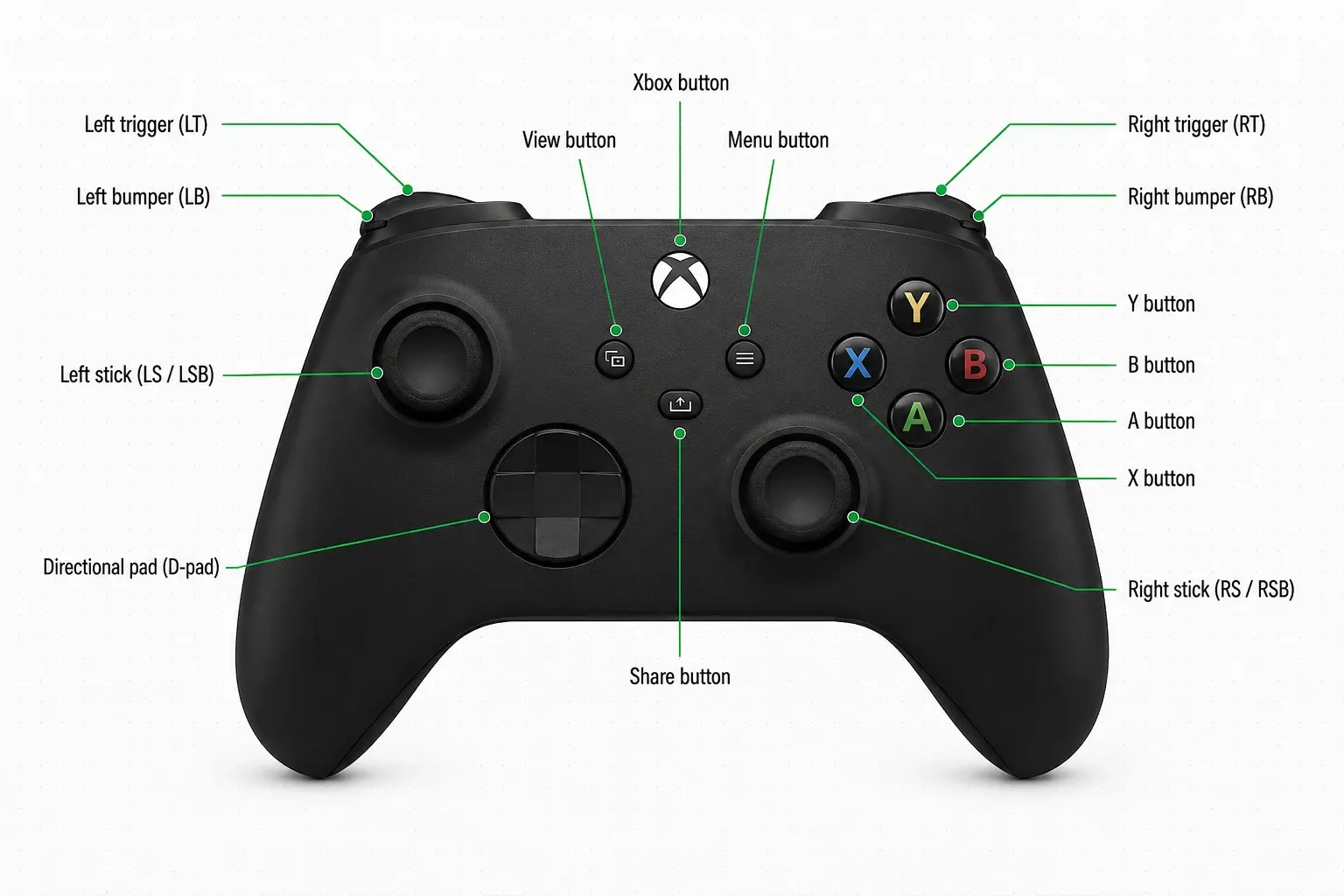
| Label | Group | What the test shows |
|---|---|---|
| A / B / X / Y | Face buttons | Game actions, menu picks, and jump or reload inputs. |
| LB / RB | Bumpers | Light shoulder clicks. They often control aim, swap, or item slots. |
| LT / RT | Triggers | Analog travel from rest to full pull. Many games use them for aim and speed. |
| View / Menu | Center keys | Small center keys used for maps, pause screens, and system menus. |
| D-pad | Four-way pad | Digital up, down, left, and right directions. |
| LS / RS | Stick clicks | Press the left or right stick cap without changing its axis position. |
| Xbox / Share | System keys | The home key and newer share key, when the pad exposes them. |
LT and RT are the main trap for a quick check. They are not simple on or off keys. Pull each one halfway, pause, then finish the pull. The bar should rise in small steps. Pressing LS or RS should not move the matching plot. That split tells you whether a click, an axis, or both are being reported.
06 / Fix the common snags
Most bad reads come from the link, the browser, or a hidden remap layer. Start with a short USB check. Then repeat the same input on your chosen wireless mode. This order gives you a clean baseline and keeps small setup faults from looking like a worn switch.
Clean around the cap, then press A from the center and each edge. If the live map flashes twice, the switch may bounce. Test a second link before calling it a game bug.
Charge the pad, remove old pairings, and keep it close to the host. USB 3 devices, Wi-Fi noise, and an old driver can make a short wireless link look broken.
A browser may read buttons while hiding haptics. Check the selected pad, allow the page to run in a secure tab, and try USB. Never treat a silent preset as proof of a dead motor.
Look at the dot with your thumb away from the cap. A small offset can be normal. A steady move, a large offset, or a path that stops early deserves a drift check.
A centered stick can still feel loose in a game if the game uses a small deadzone. A browser view can also show a value that a title later filters. That is why a second pass matters. If the pad fails only in one title, check that title's map and deadzone first. If it fails in every link, keep the raw values and compare them with another pad. Small notes save time when a support team asks how the fault began.
07 / Quick answers
These answers cover the cases that show up most often during a first check. The short version is simple: wake the pad, use a data link, read each input group, and compare one change at a time.
Yes, with the right wired cable or official wireless receiver. The receiver and driver path matter more than the age of the pad. Once Windows exposes it to the browser, the live map can show its buttons and axes. Some third-party adapters report a different map, so compare the slot labels instead of trusting the shell alone.
The tab may not have permission to read a pad yet, the browser may lack Gamepad API support, or the controller may be paired to another host. Press a face key while the page is focused. Then try a USB data cable and refresh the page. A charge-only cable cannot carry input.
It can be. The exact delay depends on the controller, host radio, driver, and nearby traffic. USB is the clean baseline for a fault check. A wireless adapter can keep a low-latency link without a cable. Use the same motion on both links before you compare the readout.
No. It can show whether the browser sent a supported rumble command and whether the actuator accepted it. Browser support, firmware, batteries, a remapper, and the connection can all change the result. A failed browser call is a reason to test another host, not a final hardware verdict.
Xbox pads do not expose a built-in gyro for normal PC Gamepad API use. The tool focuses on buttons, sticks, triggers, and rumble. Motion aim needs a controller and game that support a motion sensor path, such as some PlayStation or Switch devices.
No controller log is sent from the tool. Values are read in the page, shown in the cards, and discarded when the tab closes or the device disconnects. The site does not need an account, a driver download, or a device serial number for this check.
For a wider controller check, compare the PS5 DualSense Test after you finish the Xbox run. Different pads can expose different slots, but the same slow method still works: connect, wake, press, move, pull, and record what the browser reports. 🎮