'%3e%3cpath fill='none' stroke='%23f5f5f4' stroke-linejoin='round' stroke-width='6' d='M31 67c-5-16 4-33 20-37 8-2 15 0 20 5 5-5 12-7 20-5 16 4 25 21 20 37l-5 18c-2 9-14 11-20 3l-9-12H60l-9 12c-6 8-18 6-20-3l-5-18Z'/%3e%3cpath stroke='%2354b1ff' stroke-linecap='round' stroke-width='6' d='M47 51v22M36 62h22'/%3e%3ccircle cx='86' cy='56' r='5' fill='%2342d399'/%3e%3ccircle cx='99' cy='69' r='5' fill='%23fba84d'/%3e%3c/g%3e%3cpath fill='none' stroke='%2354b1ff' stroke-linecap='round' stroke-width='3' d='M24 101h80' opacity='.7'/%3e%3ctext x='146' y='69' fill='%2354b1ff' font-family='DM Sans%2c Arial%2c sans-serif' font-size='36' font-weight='700' letter-spacing='-1.2'%3eGamepad Tester%3c/text%3e%3ctext x='149' y='96' fill='%237c8794' font-family='IBM Plex Mono%2c monospace' font-size='12' font-weight='600' letter-spacing='3'%3eONLINE CONTROLLER DIAGNOSTICS%3c/text%3e%3c/svg%3e)
How to Test a PS4 Controller on PC
Quick answer: connect the DualShock 4, press one button, then check every control in the live panel. A wired link gives the clearest first result. Bluetooth is useful after the wired check.
PS4 Controller Test: start with a clean signal
- 1 Connect your DualShock 4.
Use a data-ready micro USB cable. Plug it into the PC, not a charge-only hub. For wireless play, pair the pad after the USB check.
- 2 Wake the browser input stream.
Press Cross, Circle, Square, Triangle, Share, Options, or a D-pad direction. Many browsers hide a pad until the first button press.
- 3 Check each digital control.
Press each face button, shoulder button, D-pad direction, L3, R3 and PS button. The matching map control should glow at once.
- 4 Move the sticks and triggers.
Turn each stick in a slow circle. Push each edge, release it, and pull L2 and R2 from rest to full travel.
- 5 Try the touchpad and rumble.
Press the touchpad once. Then run a light rumble preset when the browser reports vibration support. Keep the sound low near other people. 🔊
A clean test starts with one device, one browser tab, and no mapper hiding the real input.
DualShock 4 / DS4 Controller Tester Checks
The live panel reads standard browser gamepad data. It focuses on the input that affects PC play: buttons, D-pad directions, sticks, triggers, touchpad press, and basic rumble. It does not claim to repair a worn part.
Button and D-pad response
Tap each control once, then tap it twice. A healthy input should appear on both taps. A stuck button may stay bright after your finger lifts.
Shoulder and trigger range
L1 and R1 act as digital buttons. L2 and R2 also expose analog depth. Pull them slowly so a missing mid-range value is easy to spot.
Stick center and drift
Let both sticks rest. The plot dot should sit near the center. If it wanders without touch, use the dedicated Stick Drift Test for a longer sample.
Vibration support
A browser can send a basic dual-rumble command when the device exposes an actuator. For longer patterns, compare the result in the Controller Vibration Test.
If the browser shows a virtual Xbox pad, the readout is still useful. It tells you what a game will receive after Steam Input or DS4Windows maps the device. Close the mapper when you need the raw DualShock 4 view. For index details, compare the Controller Mapping Test.
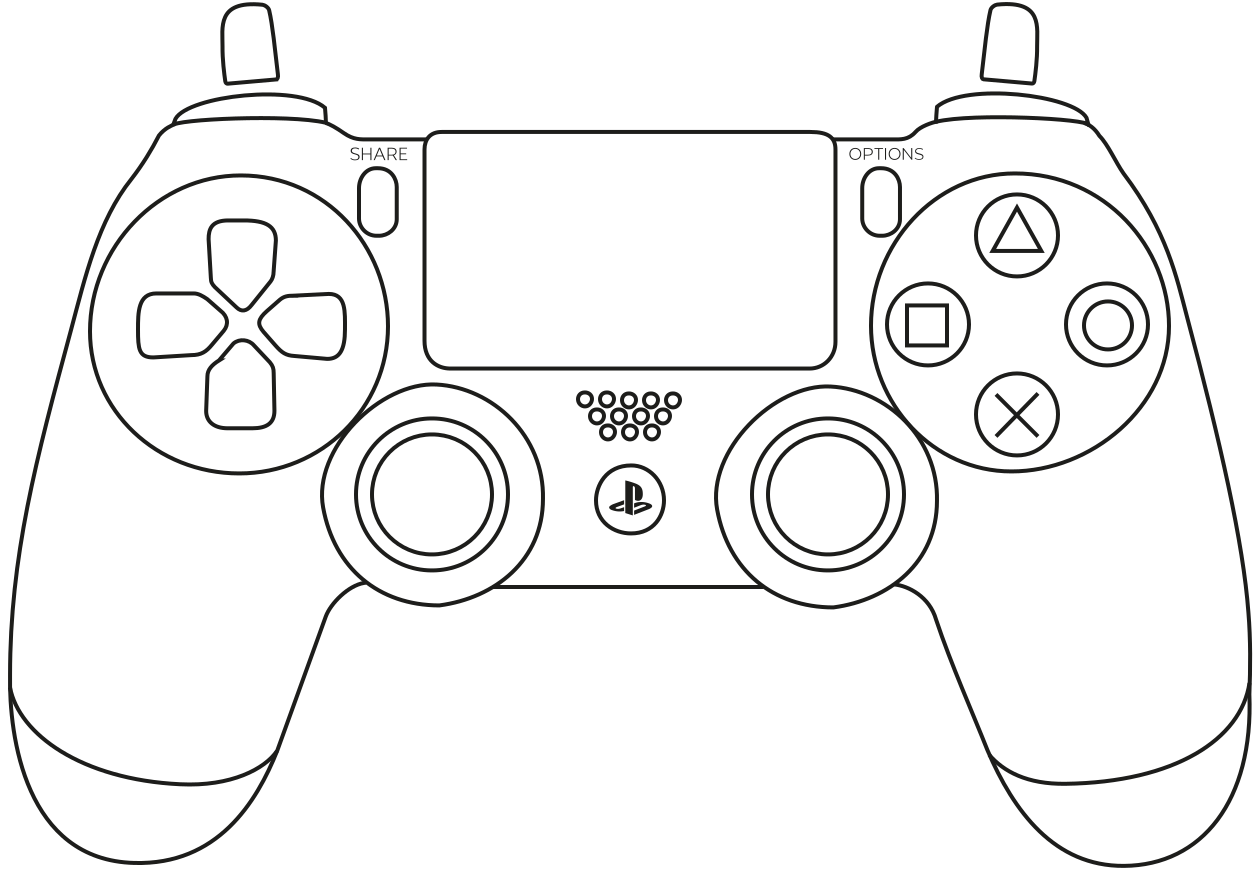
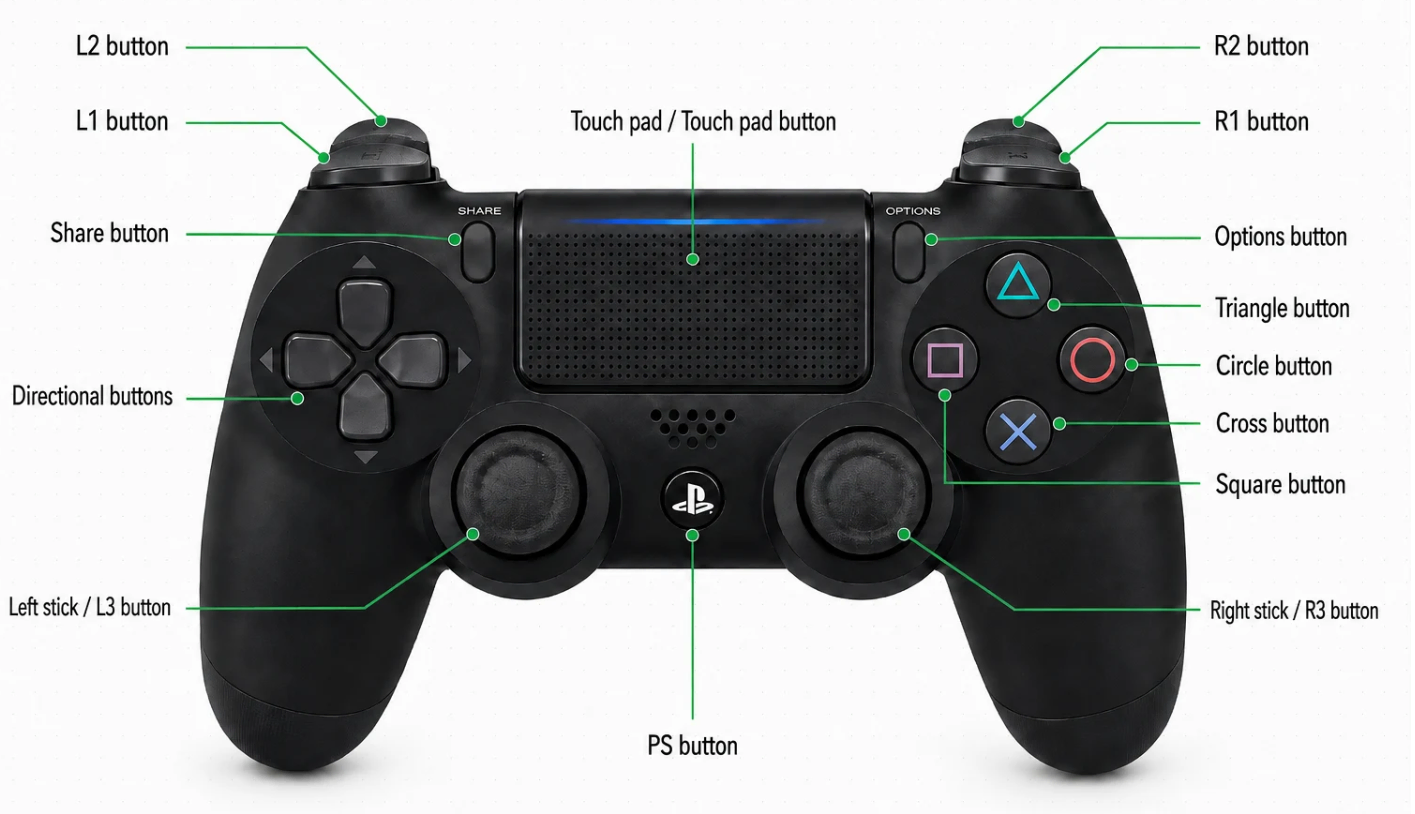
PS4 Controller Button Names and Layout
The names below match common DualShock 4 labels. Games may call Cross “A” after an XInput remap. The physical location stays the same.
| Area | Labels | What to watch |
|---|---|---|
| Face buttons | Cross, Circle, Square, Triangle | Press and release state |
| Top edge | L1, R1, L2, R2 | Digital click and trigger range |
| Center controls | Share, Options, PS, Touchpad | Browser button exposure |
| Sticks | L3, R3, left/right axes | Center, edge reach and drift |
| D-pad | Up, Down, Left, Right | Each direction as a separate input |
The picture helps you name a control before you test it. The tool map then gives live feedback, while the raw panel shows the values sent by the browser. That split is handy when a game uses a different button order.
Connection and mapper setup
Test in the same mode you plan to use in a game. USB removes pairing, radio noise, and low-battery questions from the first pass. For official pairing steps, see the PlayStation DualShock 4 setup guide.
Micro USB baseline
Use a cable that carries data. If the pad only charges, Windows may show no controller. Try a rear USB port and skip an unpowered hub.
Bluetooth check
Pair the controller, press a button, and repeat the same inputs. Delay, missing buttons, or a changing id point to the adapter or driver.
DS4Windows setup
A mapper can expose a virtual Xbox 360 pad. That helps older PC games, but it changes the labels seen by a browser test.
Save one wired result before you compare wireless or mapped results. That small habit turns a vague fault into a useful baseline. 🧪
Raw versus virtual controller output
DS4Windows, Steam Input, and similar tools sit between the physical pad and the game. They may hide the raw device, add a virtual device, or remap button names. Read the same controller twice if a result looks odd.
Raw DualShock 4 versus virtual output
Close the mapper when you need to inspect the physical DS4. You should see PlayStation labels and the pad's own id. If two devices appear, select the slot that matches your goal.
When to keep the mapper open
Leave it open when you want to test the signal your PC game receives. Check the virtual button order, deadzone profile, and rumble result. This catches profile errors before a game launch.
Why the pad can look like Xbox
XInput is common on Windows. DS4Windows can translate DS4 input into XInput so more games recognize it. That is a mapping choice, not proof that your physical controller changed.
If detection flips between devices, close extra gamepad pages, stop one mapper, refresh the browser, and test again. The DS4Windows detection guide can help with driver and hide-device settings.
PS4 Controller Touchpad Test: Click vs Gestures
A browser Gamepad API page can often see a touchpad press as a button. It cannot promise the pad's two-dimensional touch surface. This PS4 Controller Test counts press events, not finger movement across the panel.
Touchpad press
Press the broad center surface. The count should rise once per press and release cycle. A long hold should not add a new count every frame.
Swipes and position
Swipe direction, finger position, and multi-touch are outside the normal browser Gamepad API. A native game or HID tool may read more signals.
Mapped touchpad behavior
DS4Windows or Steam Input may turn the touchpad into a mouse, a button, or a virtual control. Test the raw pad and the mapped output separately.
What This Browser Test Cannot Check on a DualShock 4
The standard browser Gamepad API is an input layer. It is not a full PlayStation hardware service. The MDN Gamepad API guide explains the browser model in more detail.
- Light bar: the page cannot set or verify its color.
- Motion sensors: gyroscope and accelerometer data need another API.
- Speaker and headset audio: output depends on the OS, game, and audio route.
- Full touch gestures: swipe path, touch coordinates, and multi-touch are not promised.
- Hardware repair: a plot can show drift, but it cannot fix dust or worn modules.
- Advanced haptics: basic rumble is not the same as game-specific effects.
A game may work when this page does not. Native drivers can expose a device through a different path. Try USB, close mappers, refresh, and compare a second modern desktop browser before blaming the hardware.
Common PS4 Controller Problems on PC
Use the checks below to separate a browser issue from a connection issue or a worn control. For reset and repair steps, use the official DualShock 4 troubleshooting page.
PS4 Controller Not Detected
Reconnect the pad, press a face button, and reload the page. Try a known data cable and a different USB port. With Bluetooth, remove the device from Windows, pair it again, and test with one controller page open.
Buttons Are Not Working
Test one button at a time. If a single input fails, compare USB and Bluetooth. Close DS4Windows and Steam Input, then check whether the raw pad responds. A mapper can hide a physical button or change its label.
Stick Looks Off Center
Let the stick rest for several seconds. Small noise can come from the sensor. A steady offset or a moving dot without touch is a good reason to run the longer stick drift check.
Rumble Does Not Start
Browser rumble needs device and connection support. Try USB first. Close apps that may hold the controller, then reload. If the button stays disabled, the browser did not expose a vibration actuator.
Frequently Asked Questions
Can I test my PS4 controller online without downloading software?
Yes. A current desktop browser can read standard Gamepad API input. Connect the DualShock 4, press a button, and check the map, sticks, triggers, touchpad press, and supported rumble.
How do I test a PS4 controller on PC?
Start with a data-ready micro USB cable. Open the page, press a button, test each control, move both sticks, and pull L2 and R2 slowly. Repeat the same steps over Bluetooth if needed.
Is this a DualShock 4 or DS4 controller tester?
Yes. DS4 is a common short name for DualShock 4. The labels use the PlayStation layout, while the raw panel shows the values exposed by your browser.
Can a browser test PS4 touchpad gestures?
It can often test the touchpad press. Standard Gamepad API access does not promise finger position, swipes, or multi-touch. A native tool may expose more data.
Can I run a PS4 controller vibration test online?
You can try basic rumble when the browser exposes a vibration actuator. USB is the best first check. Advanced effects still depend on the game, driver, and connection mode.
Can this page fix PS4 controller stick drift?
No. It can show an off-center or unstable stick. A deadzone setting may hide mild drift in a game, but worn hardware needs cleaning or repair.
Should I close DS4Windows before testing?
Close it when you want the raw DualShock 4. Keep it open when you want to test the virtual output sent to a PC game. Write down which mode you used beside each result.
Why does my PS4 controller appear as Xbox?
DS4Windows, Steam Input, or another mapper may translate the pad into XInput. That can improve game support. Close the mapper to compare the physical device and the virtual device.